Creating a Backup
During the backup process, your database will be temporarily locked. Certain operations will be unavailable during this time.
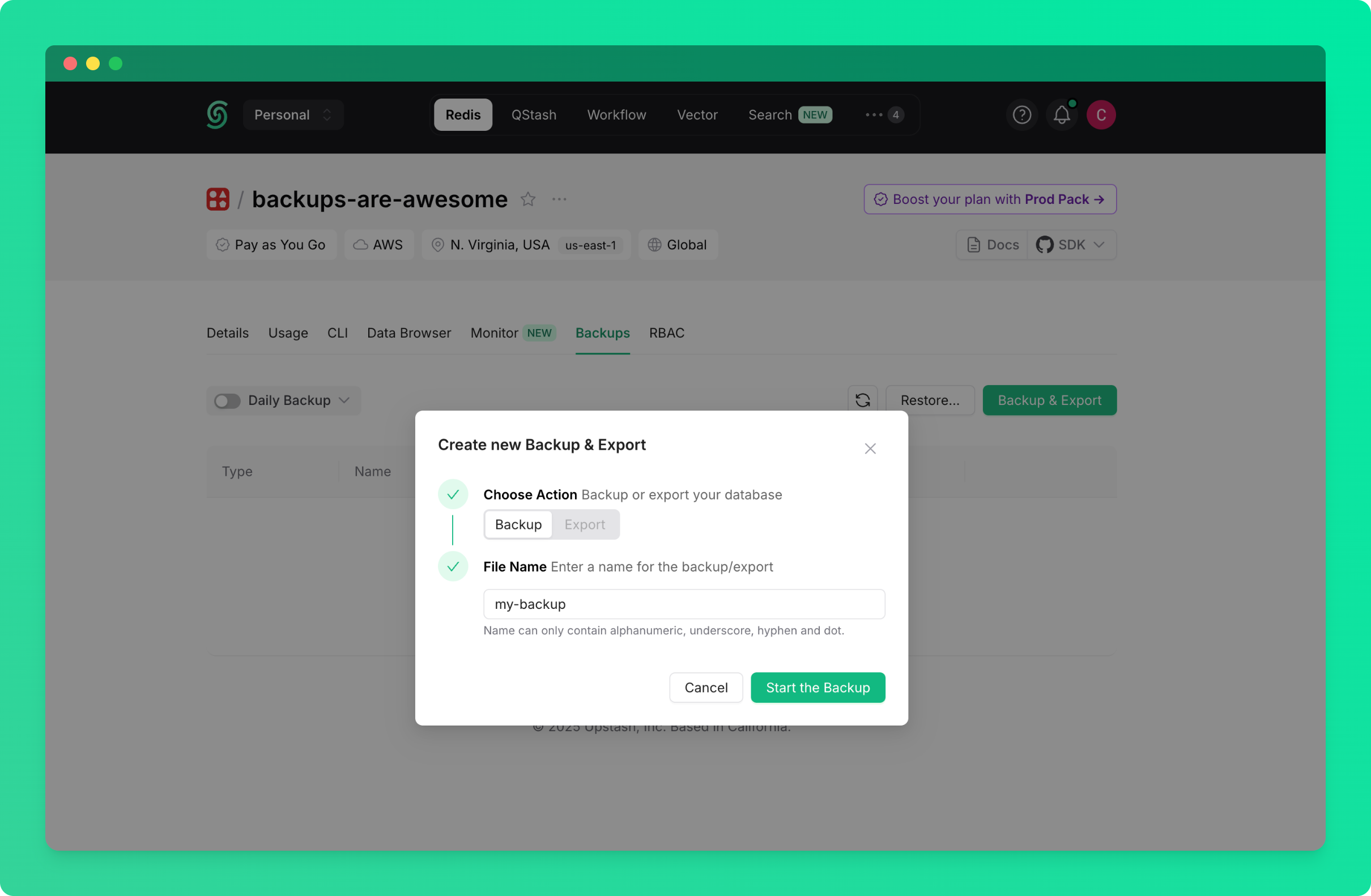
Create an Immediate Backup
To create a backup right now:- Go to the database details page and navigate to the
Backupstab - Click on the
Backup & Exportbutton - Choose
Backup
Schedule Periodic Backups
To automatically create backups on a regular schedule:- Go to the database details page and navigate to the
Backupstab - Click the switch next to
Daily Backupto enable daily backup or click onDaily Backuptext itself to select how long the backup is to be stored (1 or 3 days)
Managing Backups
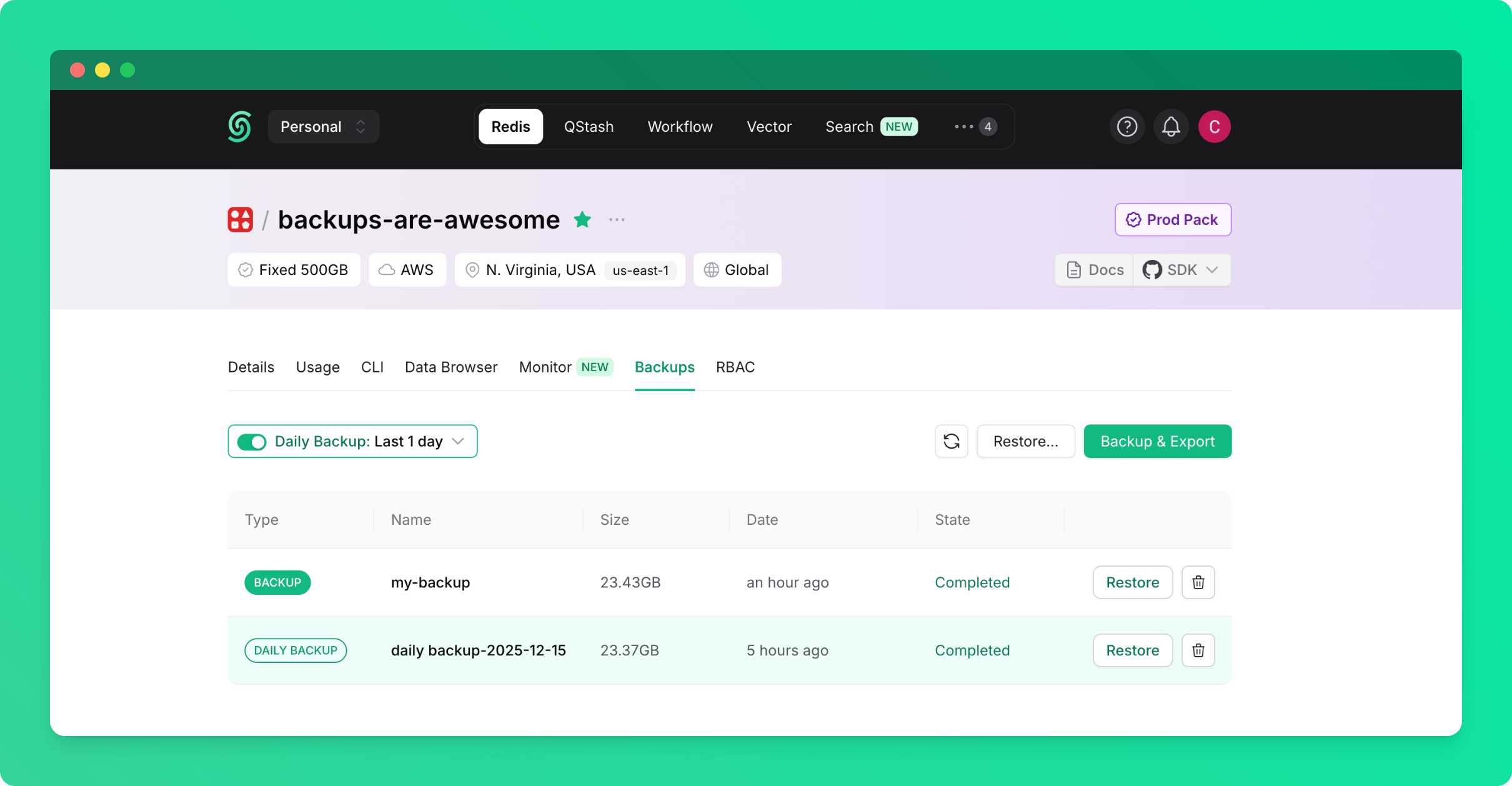
All created backups are displayed in the backups table in theBackups tab. From this table, you can:
- View backup details (name, creation date, size)
- Restore your database from any backup
- Delete backups you no longer need
Restoring from Backup
You can restore your database from any backup in your account or team.Restore from the Backups Table
To restore from a backup of the current database:- Go to the database details page and navigate to the
Backupstab - Find the backup you want to restore in the backups table
- Click on the
Restorebutton next to the backup - Confirm that you are deleting existing data and want to proceed with the restore

Restore from Any Database Backup
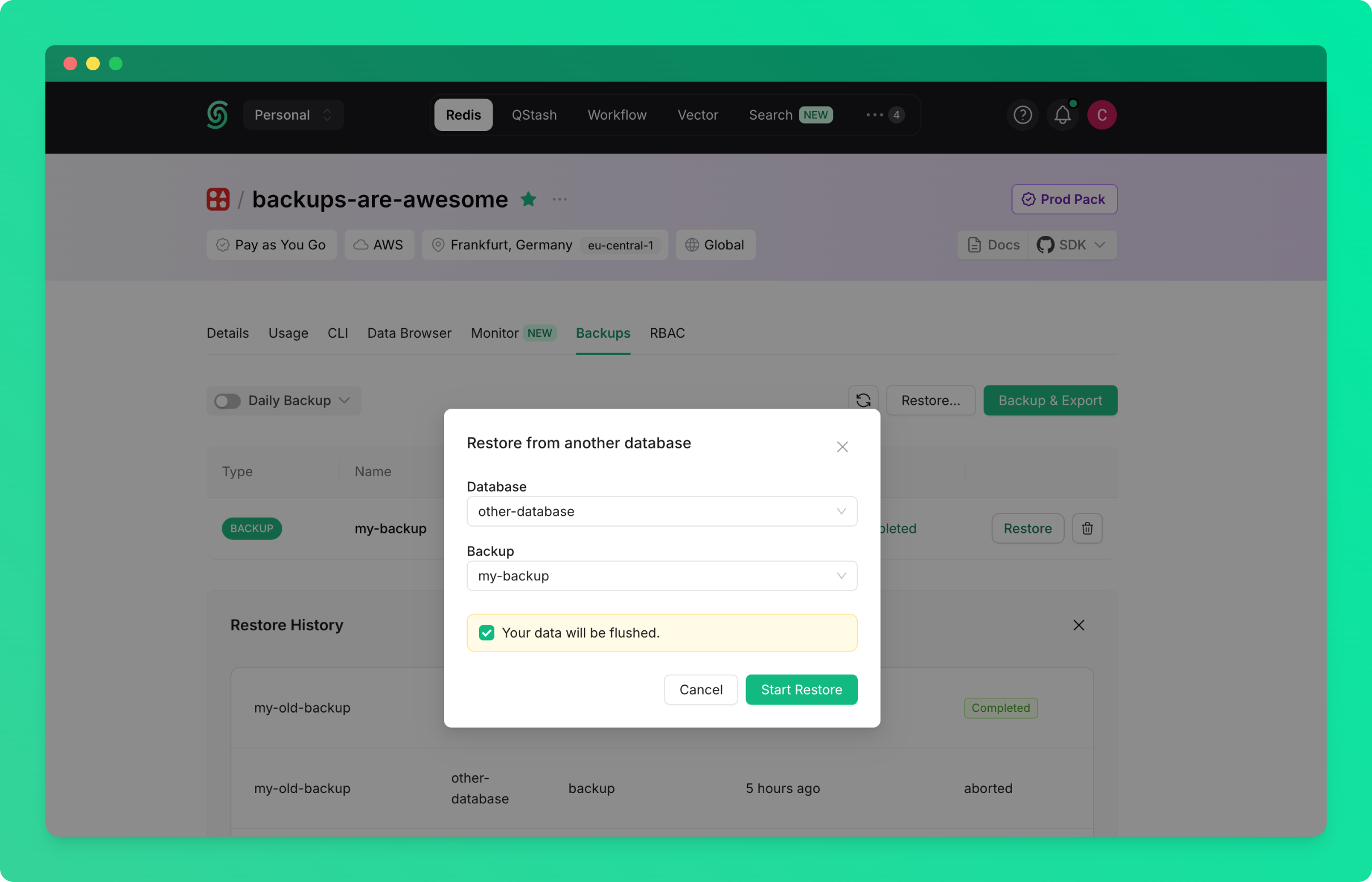
To restore from a backup created from any database in your account or team:- Go to the database details page and navigate to the
Backupstab - Click on the
Restore...button - Select the source database (the database from which the backup was created)
- Select the backup you want to restore
- Click on
Start Restore